Ubuntu post-installation notes
Install steam
Don't install through snap (= App Center, at least on Ubuntu). Apparently Snap is some kind of sandboxed environment which may cause trouble. In my case, my microphone did not work in-game and there were performance issues.
Instead, install directly from apt:
sudo apt install steam-installer
In case of 'Unsatisfied Dependencies Error: Missing i386 architecture':
This is because Steam requires 32-bit libraries (i386) even on 64-bit systems. You must install the additional i386 architecture:
sudo dpkg --add-architecture i386
sudo apt update
And now re-run:
sudo apt install steam-installer
steam
Deal with 'Find files on desktop' shortcut
When pressing shift+walking keys to run in the game, focus will shift to the 'Find files on desktop' dialog popping up in Ubuntu. To disable this:
settings set org.gnome.mutter.wayland xwayland-allow-grabs true
This allows xwayland to lock your keyboad inputs to the focused application and should disable the find files dialog from appearing when playing the game.
Fix wake from suspend
My initial install had an issue where the computer wouldn't turn on again after suspend. I'm not sure if it was a fluke or not, because the fix below is supposed to fix an opposite issue where the system never goes to sleep. Nonetheless I haven't experienced the issue since applying this. See the source article for a more in depth explanation of the issue.
This is only relevant for Gigabyte motherboards I think. In my case the B550 AORUS ELITE AX V2.
Add the following script to /etc/systemd/system and name it, for example wakeup-disable-GPP0.service
[Unit]
Description=Disable GPP0 as ACPI wakeup source
After=multi-user.target

[Service]
Type=oneshot
ExecStart=/bin/bash -c "echo GPP0 > /proc/acpi/wakeup"

[Install]
WantedBy=multi-user.target
Then enable the service with:
sudo systemctl enable wakeup-disable-GPP0.serviceGet Plex access to an external media USB drive
It took quite a bit of trial and error, so beside these commands you may need to perform some other modifications on the /media folder, but I don't think so.
Assuming Plex is installed:
Change ownership of the drive and every subfolder and file. The current user should keep ownership but plex should have group access.
Set permissions. The current user can read, write and execute, but Plex can still read and execute (= scanning the files).
sudo chown -R $USER:plex /media/my-drive
sudo chmod -R 755 /media/my-drive
Restart Plex:
sudo systemctl enable plexmediaserverTry and add your libraries to see if all your media can be found.
If that works, the next step is to get your drive booted automatically at launch. To do so we need to edit the etc/fstab file. Make sure to create a backup first:
sudo cp /etc/fstab /etc/fstab.backup
Find out your media drive's disk UUID using the Disk tool.
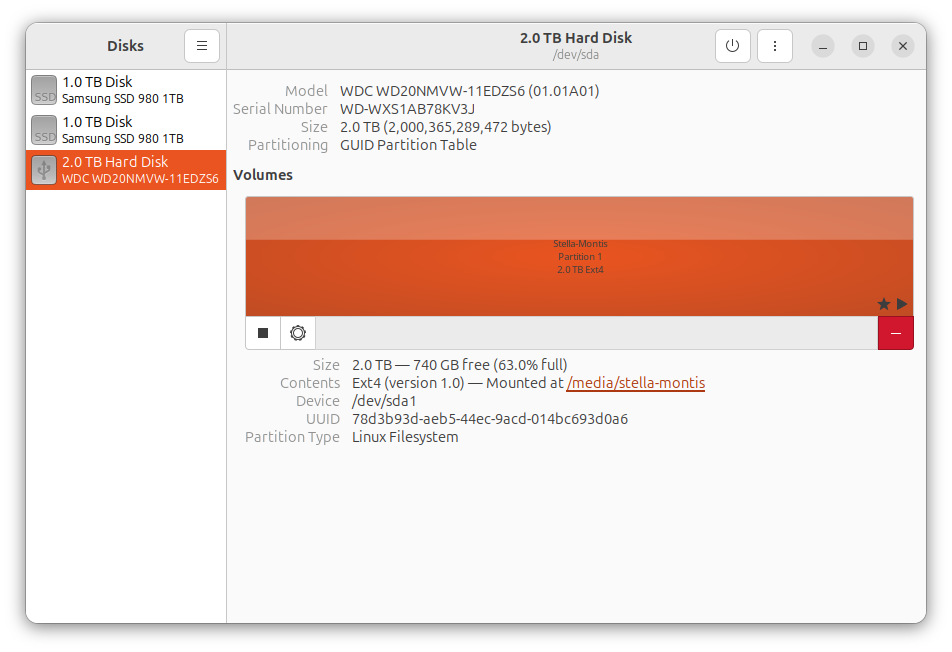 Then add the following line to
 etc/fstab (using my own disk UUID here):
/dev/disk/by-uuid/78d3b93d-aeb5-44ec-9acd-014bc693d0a6 /media/my-drive ext4 defaults,nofail 0 2Note: replace /media/my-drive to your desired mount point and ext4 to the the file system your drive uses.
nofail makes sure the boot process isn't blocked if the drive fails to get mounted.